Using saved filters
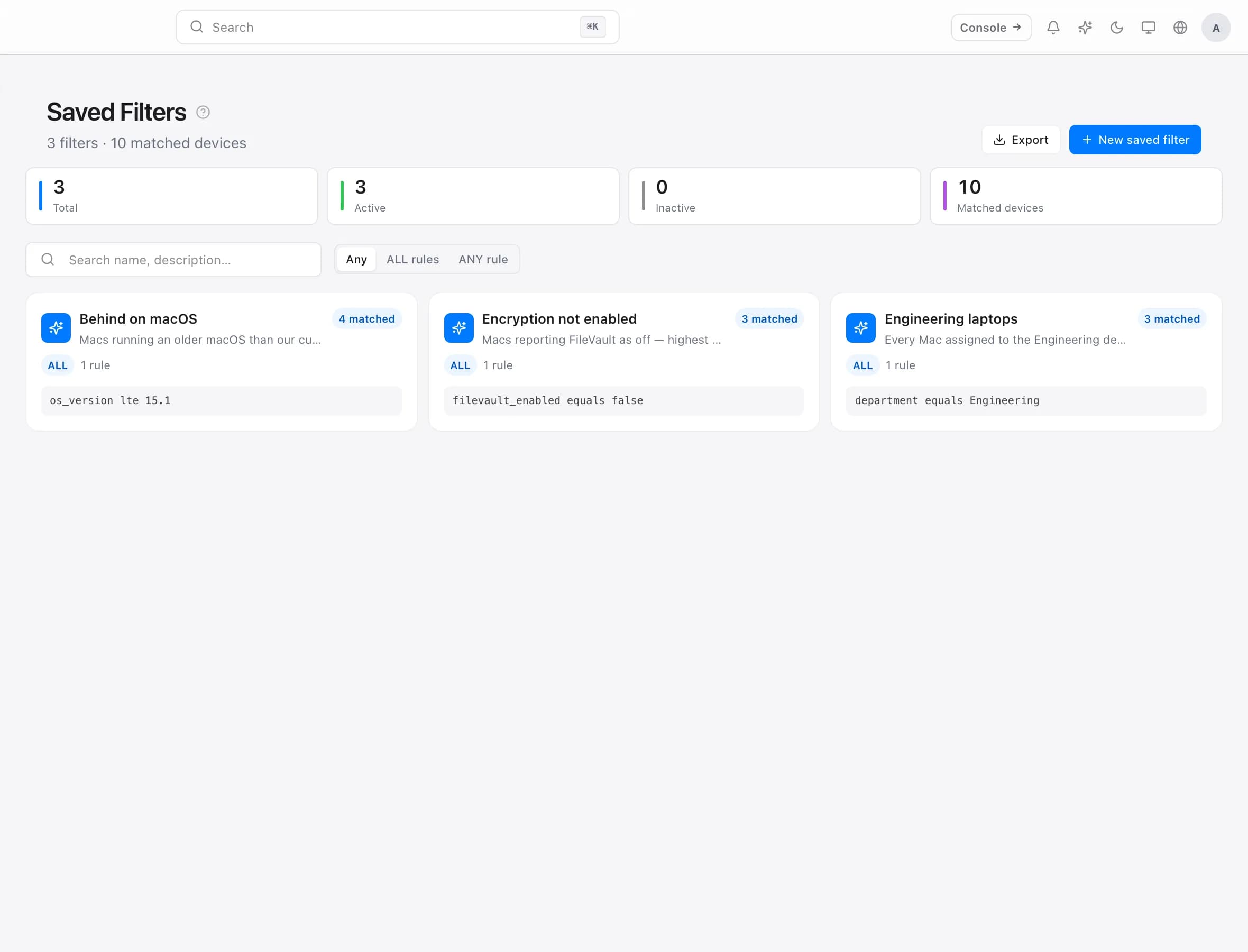
A saved filter is a description, not a list. You write the rules once — "any Mac running an older macOS than we allow" — and membership takes care of itself as machines change.
This is the difference that matters: you never add or remove a Mac from a saved filter. It arrives by matching the rules, and leaves by no longer matching them.
When to use one
Use a saved filter when membership follows from something the Mac reports about itself:
- Macs behind on macOS
- Macs without disk encryption
- Macs that have not checked in for a fortnight
- Macs in a department running a particular model
Use a department instead when membership is an organisational fact rather than a state — which team owns the machine. Departments are assigned by you; saved filters are derived from the fleet.
The test is simple: if this Mac changed, should it leave the group by itself? Yes means saved filter.
Rules, and how they combine
A saved filter is a set of rules plus a choice about how to combine them.
All rules requires every rule to be true — narrower, and the right default. "macOS at or below 15.1" and "department is Engineering" gives you exactly the Engineering machines to chase.
Any rule requires only one — useful for gathering variations of the same problem. "Encryption off" or "not checked in for 30 days" collects everything needing attention, whatever the reason.
Start narrow. A filter that matches most of the fleet is rarely telling you anything, and it is easy to widen one once you trust it.
What you can write rules about
Rules read the things a Mac reports at check-in:
- Text — macOS version, model, department, host name, serial number. These can match exactly, contain a value, start with one, or be at or above/below a value. Version comparisons work this way.
- Yes or no — compliant, encryption enabled, system protection enabled.
- Memory — at or above / below a size.
- Last check-in — within a number of days.
Checking a filter before you rely on it
The match count is shown against every filter. It is the fastest way to catch a rule that does not say what you meant.
Two failure modes are worth naming, and both look calm:
A filter matching zero Macs. Usually a rule that cannot be true — two requirements that contradict each other, or a value that does not occur in your fleet. It sits there reporting nothing, and nothing is exactly what you would expect from a fleet with no problems.
A filter matching everything. Usually any rule where all rules was intended. One broad rule then pulls in the whole fleet, and the filter becomes a list you stop reading.
Open the filter and look at the machines in it. If the members are not the ones you pictured, the rules are wrong — fix them before anything depends on it.
What filters are for
Once a filter describes the right Macs, it becomes the unit you work in rather than a report you read:
- Target software. Approve an app for the group rather than machine by machine.
- Scope a rollout. Deploy to a small filter first, confirm it landed, then widen.
- Track a problem. A filter that empties as you work through it is the clearest progress indicator there is.
That last one is the quiet benefit. "Macs without encryption" going from forty to zero is a better measure of a week's work than any report — and it needs no maintenance to stay accurate.
A note on timing
Membership is evaluated from what each Mac last reported. A machine that has fixed itself but has not checked in since is still in the filter, and a machine that has drifted has not joined yet.
This is the same lag that governs everything else in ownMDM — see How ownMDM works. If a filter looks stale, check the last-seen times of the Macs in it before doubting the rules.
Troubleshooting
A Mac I expected is missing. Check its last check-in first — its reported state may predate the change you are matching on.
The count keeps changing. That is the point; machines enter and leave as they check in. A count that never moves on a state-based rule is more suspicious than one that does.
Everything matches. Check whether the filter is set to any rule rather than all rules.
Nothing matches, but you expected results. Confirm the value you typed occurs in your fleet exactly — an exact-match rule on a department is unforgiving about spelling.