Managing your devices
The Devices page is where most days start. It answers two kinds of question: how is the fleet doing? and what is going on with this one machine?
Reading the fleet at a glance
The counters across the top are the fleet summary — how many Macs you manage, how many have checked in recently, how many are compliant, and how many need attention.
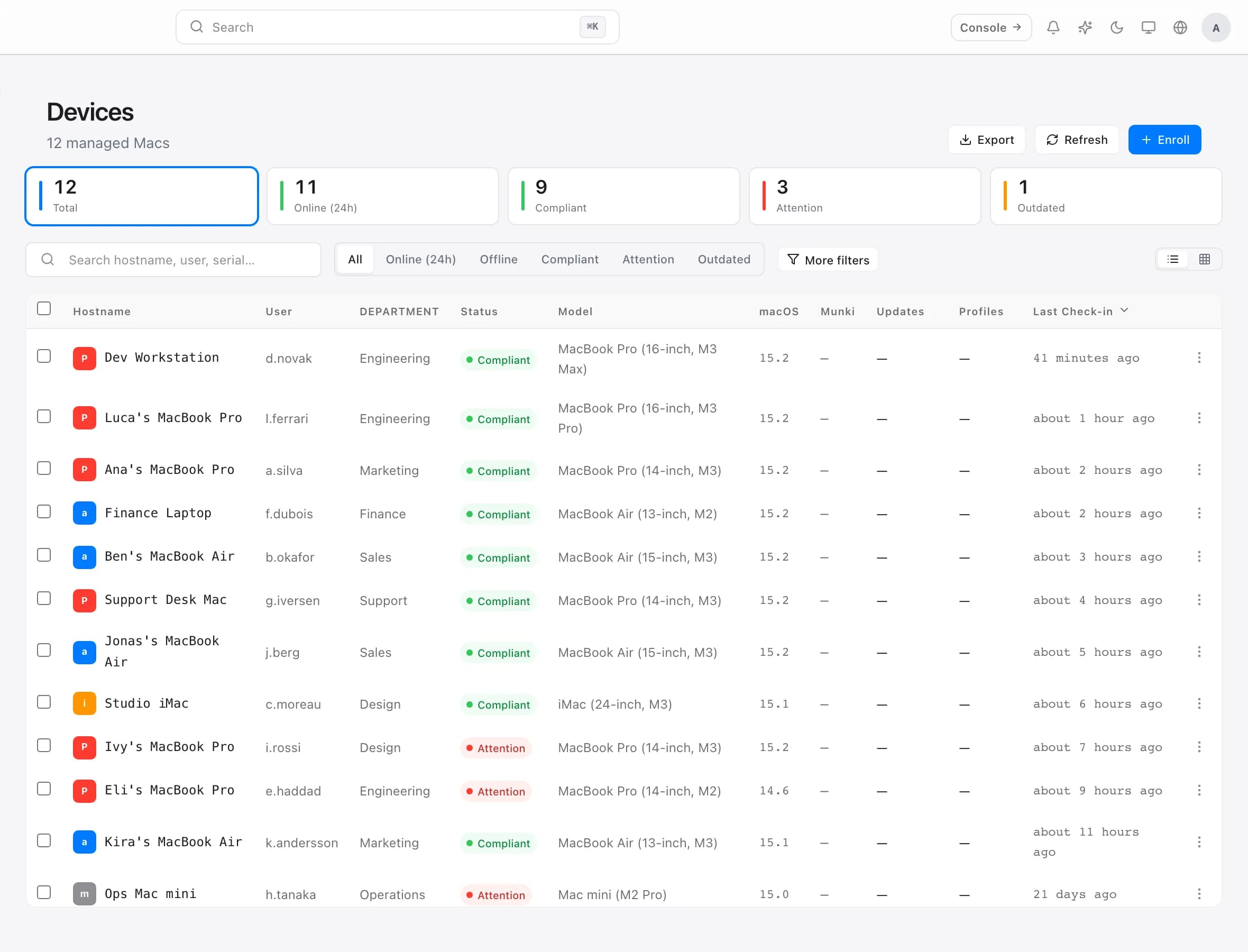
Each counter is also a filter. Selecting Attention is faster than reading down the list looking for problems, and it is the habit worth forming.
What the statuses mean
Three signals appear against every Mac, and they are independent of each other:
- Online / last seen — when the Mac last checked in. This is not "is it powered on right now"; it is "when did we last hear from it".
- Compliant — whether it passed your checks at that last check-in.
- Outdated — whether it is behind on software you have approved for it.
A Mac can easily be online and non-compliant, or compliant and outdated. They are answering different questions, and conflating them is the most common source of confusion.
"Last seen" is the one to trust first. If a machine has not checked in for a fortnight, every other field on its row is a fortnight old.
Finding a specific Mac
Search matches the things you actually know when someone asks for help: the machine name, the serial number, and the assigned user. You rarely have all three — any one will do.
For narrowing rather than finding, use the filters: department, compliance state, macOS version, and how recently the Mac checked in. Filters combine, so "Engineering Macs that have not checked in this week" is one view rather than a manual scan.
Looking at a single Mac
Open any device for its full picture: hardware and macOS, who it is assigned to, its check-in history, its installed software, and its per-check compliance result.
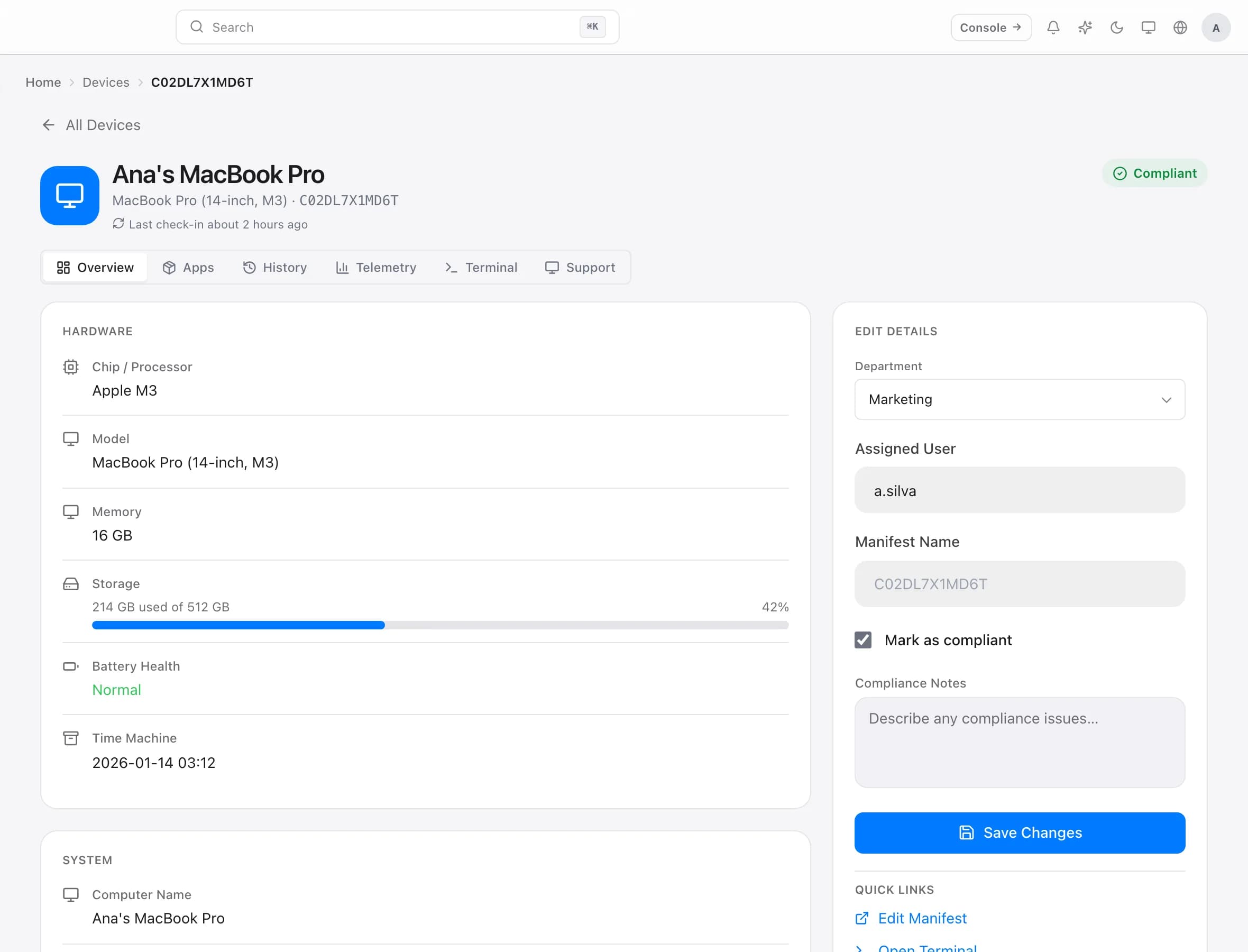
This is the view to open before answering any "why is my Mac…" question. It usually contains the answer, and it always contains the timestamp — which tells you whether the answer is current.
Departments
A department is the organisational grouping a Mac belongs to — Engineering, Sales, Design. It is set per machine and it drives two things:
- Which department catalog applies, so a team can have software the rest of the fleet does not.
- Who can see it, if you have scoped an administrator to particular departments.
Departments are deliberately simple and manually assigned. For anything conditional — "every Mac on an old macOS" — use a saved filter instead, which maintains itself.
Keeping the list honest
The fleet list is only useful if it reflects reality. Two habits keep it that way:
Remove machines you no longer manage. A retired Mac that stays in the list quietly drags down your compliance number and generates stale-check-in noise forever. Removing it is not losing data — it is refusing to count a machine nobody has.
Investigate long silences. A Mac that has been quiet for weeks is either switched off, retired, or genuinely broken. All three deserve a decision; none of them improve by being ignored.
Troubleshooting
A Mac is missing from the list. The default view hides machines that have been inactive for a long time. Clear the filters before concluding it was never enrolled.
The details look out of date. They are as old as the last check-in — check the "last seen" time before treating any field as current.
A change has not reached the Mac. Nothing is pushed. The machine picks up changes on its next check-in; if it has not checked in, it has not been told. See How ownMDM works.
Two entries for the same Mac. The machine was re-enrolled after being wiped, or it was enrolled a second time. Remove the entry with the older last-seen time.