Understanding compliance status
Compliance is ownMDM's short answer to a long question: is this Mac in the state we expect it to be in?
Every Mac in your fleet is either compliant or not, and the reason is always visible. This guide explains what goes into that judgement, how to read the compliance view, and how to work through the machines that fall short.
What makes a Mac compliant
A Mac is compliant when it passes every check you have enabled. Out of the box those checks are:
- Disk encryption is on. FileVault protects the contents if the machine is lost or stolen.
- System protection is enabled. macOS's built-in safeguard against tampering with system files.
- macOS is recent enough. The machine meets the minimum version you have set.
- The Mac has checked in recently. A machine that has gone quiet cannot be vouched for.
Failing any one of these marks the Mac non-compliant. There is no partial state — this is deliberate. A Mac with encryption disabled is not "mostly fine", and a scoring system would let that hide behind a reassuring number.
Reading the compliance view
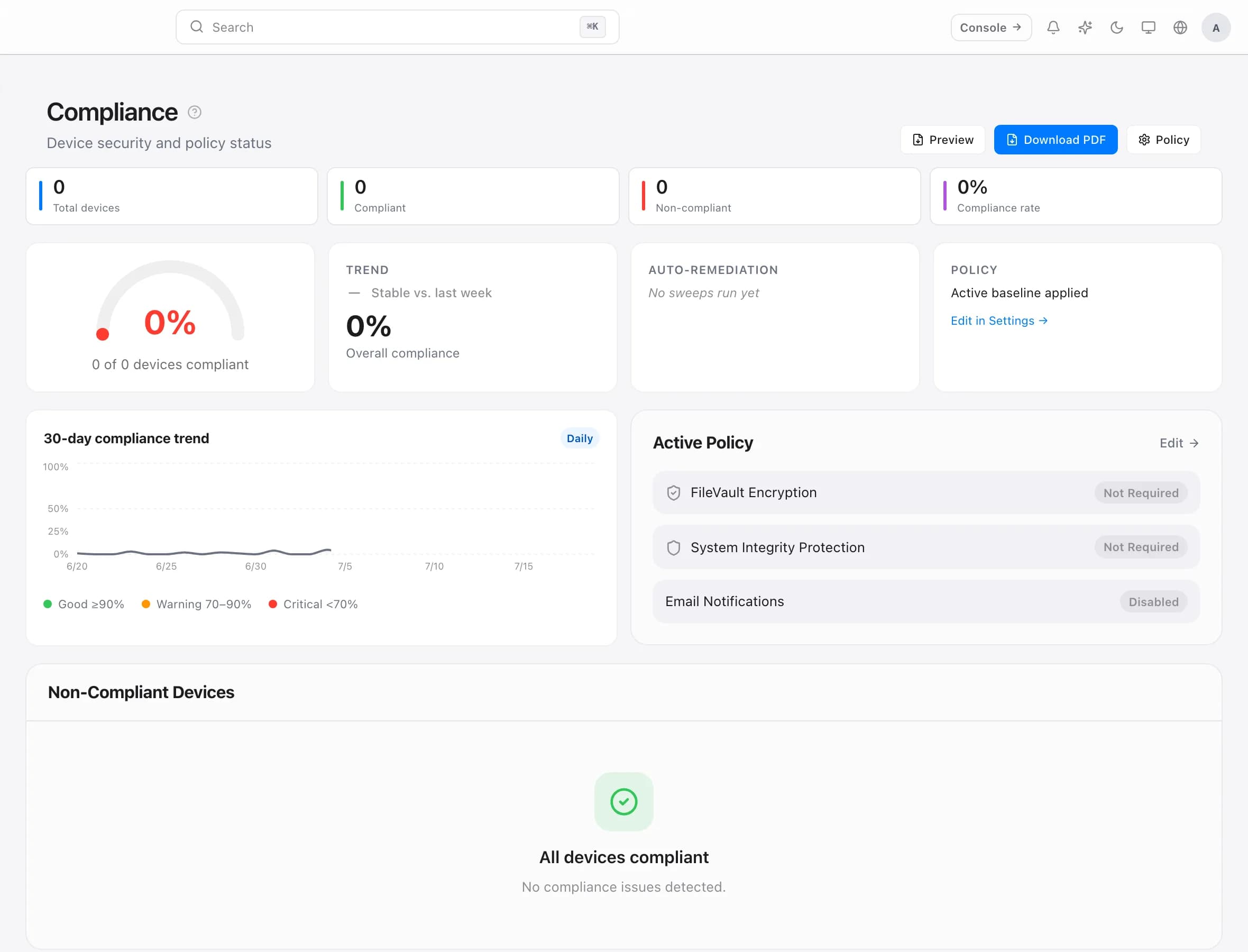
Select Compliance in the sidebar for the fleet-wide picture: how many Macs pass, how many do not, and which check is responsible.
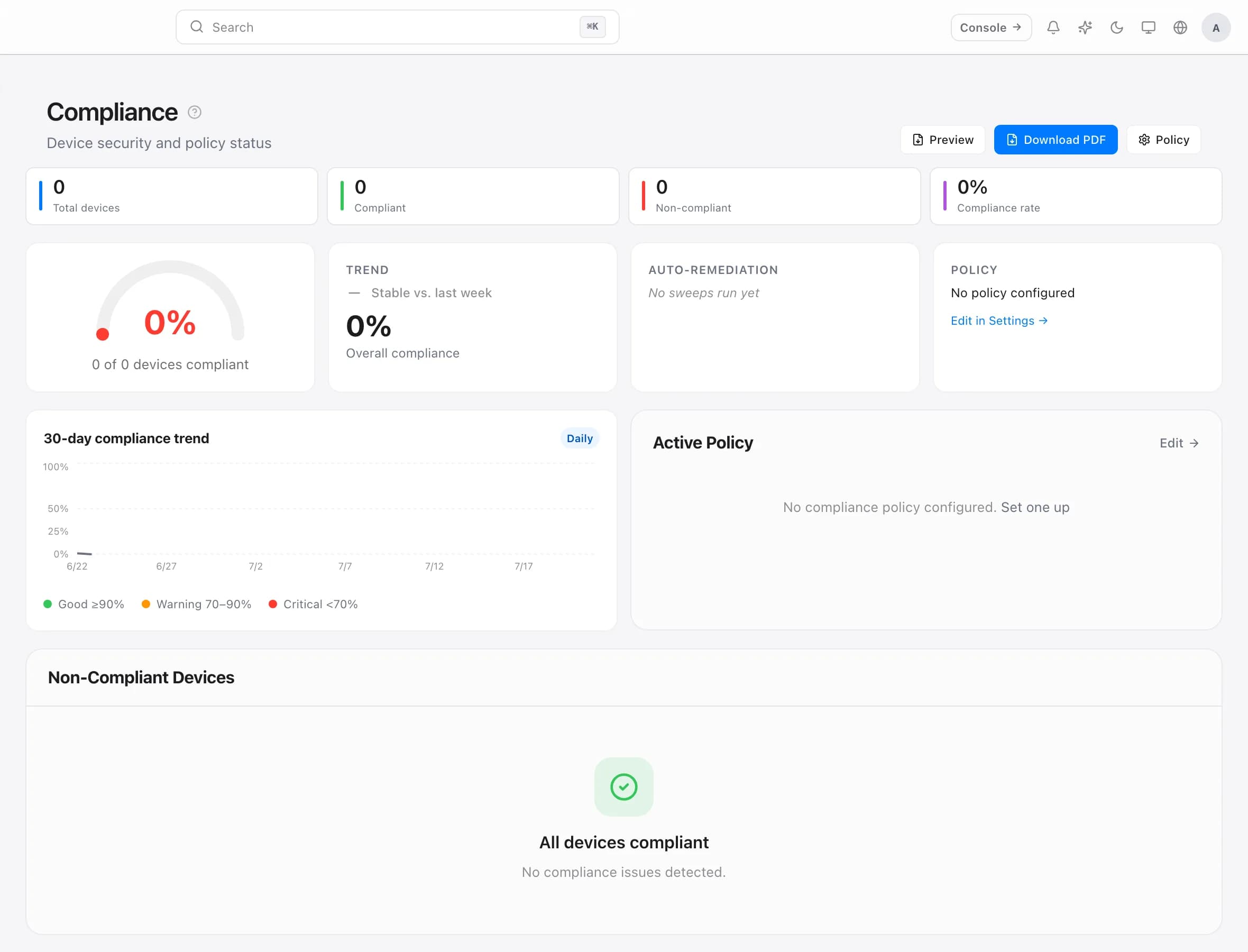
The breakdown is the useful part. Ten Macs failing one shared check is a completely different problem from ten Macs each failing something different — the first is usually one policy or one rollout, the second is genuinely ten problems.
Select any check to see exactly which machines are affected.
Checking a single Mac
Open any device and select its compliance section for a per-check result on that machine, along with when it was last evaluated.
This is the view to use when someone asks why their Mac is flagged. It answers the question directly, without you having to reason backwards from a fleet-level number.
Setting your own standards
The defaults are sensible, but they are only defaults. In Settings, under compliance, you can adjust:
- Minimum macOS version — raise it as you roll out an upgrade
- Maximum days offline — how long a Mac may go quiet before it counts against it
- Which checks apply — turn off a check that does not fit your environment
Two pieces of advice, both learned the hard way by people running fleets:
Raise the minimum macOS version gradually. Setting it to the newest release the day it ships marks most of your fleet non-compliant overnight, which teaches everyone to ignore the number.
Set the offline threshold to something realistic. If people take extended leave, a fourteen-day limit generates alerts about laptops in drawers. That noise makes real problems harder to see.
Working through non-compliant Macs
A compliance list is only useful if it gets shorter. A workable order:
- Group by cause. Fix the shared problem once rather than the same problem twenty times.
- Handle encryption first. It is the check with real consequences if a machine goes missing.
- Deal with stale check-ins separately. These are usually not security problems — the Mac is switched off, or the person has left.
- Treat outdated macOS as a rollout. Push the upgrade through your normal process rather than chasing machines one at a time.
Why a Mac stops checking in
Stale check-ins are the most common cause of a compliance drop, and most of them are not security issues at all:
- The Mac is switched off or has been away for a while
- It has been reassigned, retired, or wiped without being removed from ownMDM
- It genuinely has a problem and needs attention
The first two are administrative. Removing retired machines from your fleet keeps the compliance number honest — and an honest number is the only kind worth acting on.
Troubleshooting
A Mac shows non-compliant but looks fine. Compliance reflects the last check-in, not the present moment. If it was just fixed, wait for the next check-in.
Encryption is on but still flagged. Enabling FileVault takes time to complete on a large disk. It reports as compliant once encryption has finished, not when it starts.
A Mac disappeared from the list entirely. It was removed from your fleet, or it has been quiet long enough to be filtered out of the default view. Adjust the filter to include inactive devices.